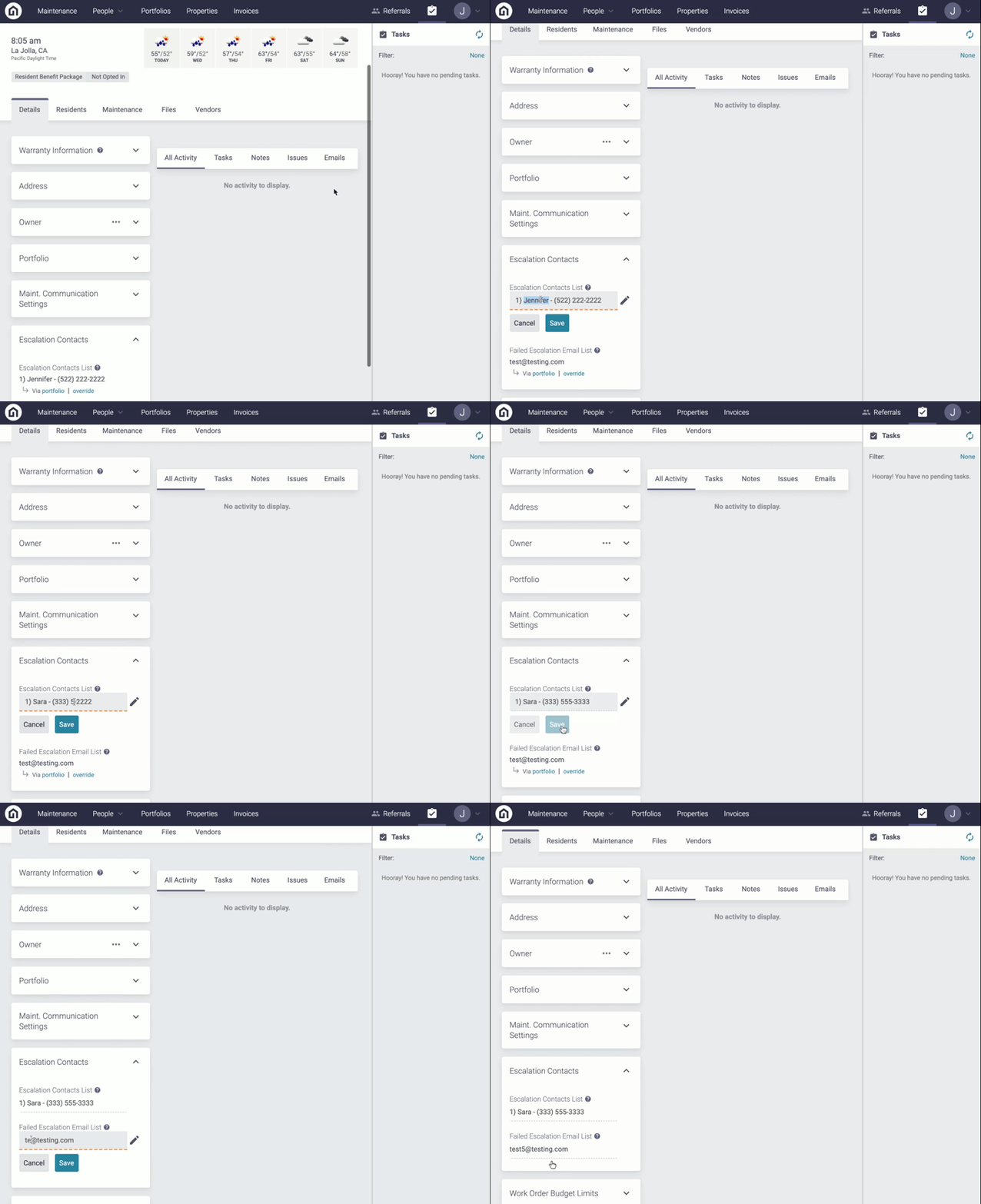
As a Property Manager, you can add a prioritized list of contacts that you want to be called in the event that an emergency request needs to be escalated. We will call each person 3 times and leave a voicemail before sending a final email.

There are 4 cases when Latchel may escalate emergency issues to you:

1. Over Budget Limit
If an emergency work order goes over-budget then the Latchel emergency team will contact you for approval. You will receive fewer escalations with a higher emergency budget limit. We recommend a $1000 emergency budget limit, but many customers also choose a $500 emergency budget limit even though it results in more calls.

2. Catastrophic Damage
Worst case scenario, the property suffers catastrophic damage. For example, a fire burns down part of the home or a car drives through a wall. This type of catastrophic structural damage will result in Latchel immediately escalating to you.

3. No Service Providers Available
We may run out of service providers to contact if you only use preferred vendors and have not enabled Latchel sourced service providers (LCN or Latchel Contractor Network). Our team may call every preferred vendor 3 times and leave a voicemail, but not hear back. In these cases, we begin your escalation path.

4. Property Verification and Approval
We may receive a request from a resident claiming you are their property manager, however, the property they live at is not added to your account. Our team will call you to receive approval before adding the property to your account.

In the event that we can’t get in touch with any of your escalation contacts, we’ll send a final email to your escalation email list. We will provide all the details relevant to the work order, provide an avenue for you to contact our emergency team, and close the work order in our system until we hear back from you (This is the worst-case scenario)

Content

  • Objective
  • Content
    • Step-by-step Guide
    • How to Update Escalation Contacts at the Portfolio Level
    • How to Update Escalation Contacts at the Property Level

Step-by-step Guide

How to Update Escalation Contacts at the Company Level

Please note: The Escalation Contacts at the Company Level will automatically apply to all portfolios and properties on the account. To learn more about configuration inheritance and how to override company level configurations, see https://latchel.ticksites.com/wp2/blog/configuration-inheritance-details-tab.

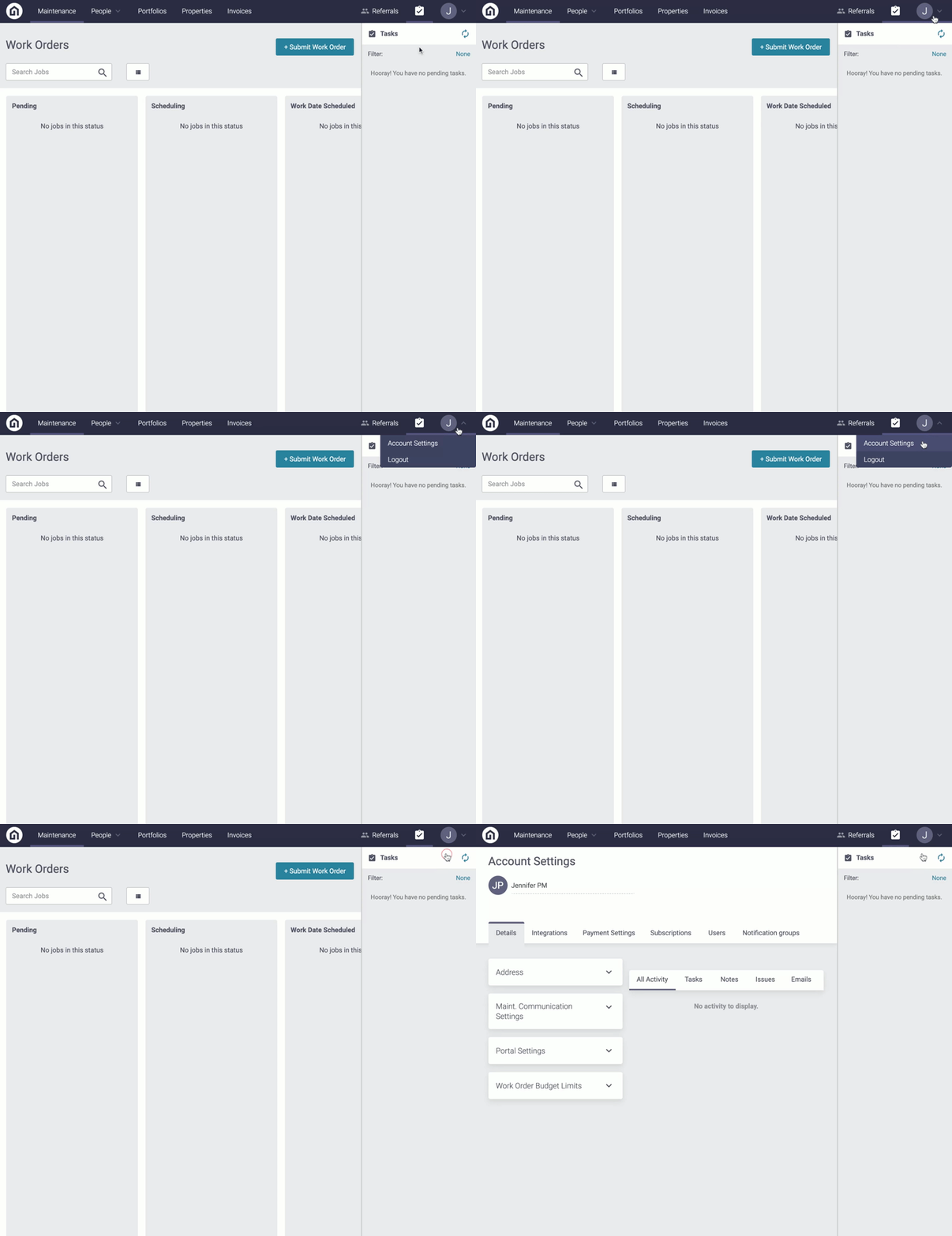
Step 1. Log into your Latchel Portal

Step 2. Click the dropdown menu on the far right-hand side of your portal and click Account Settings

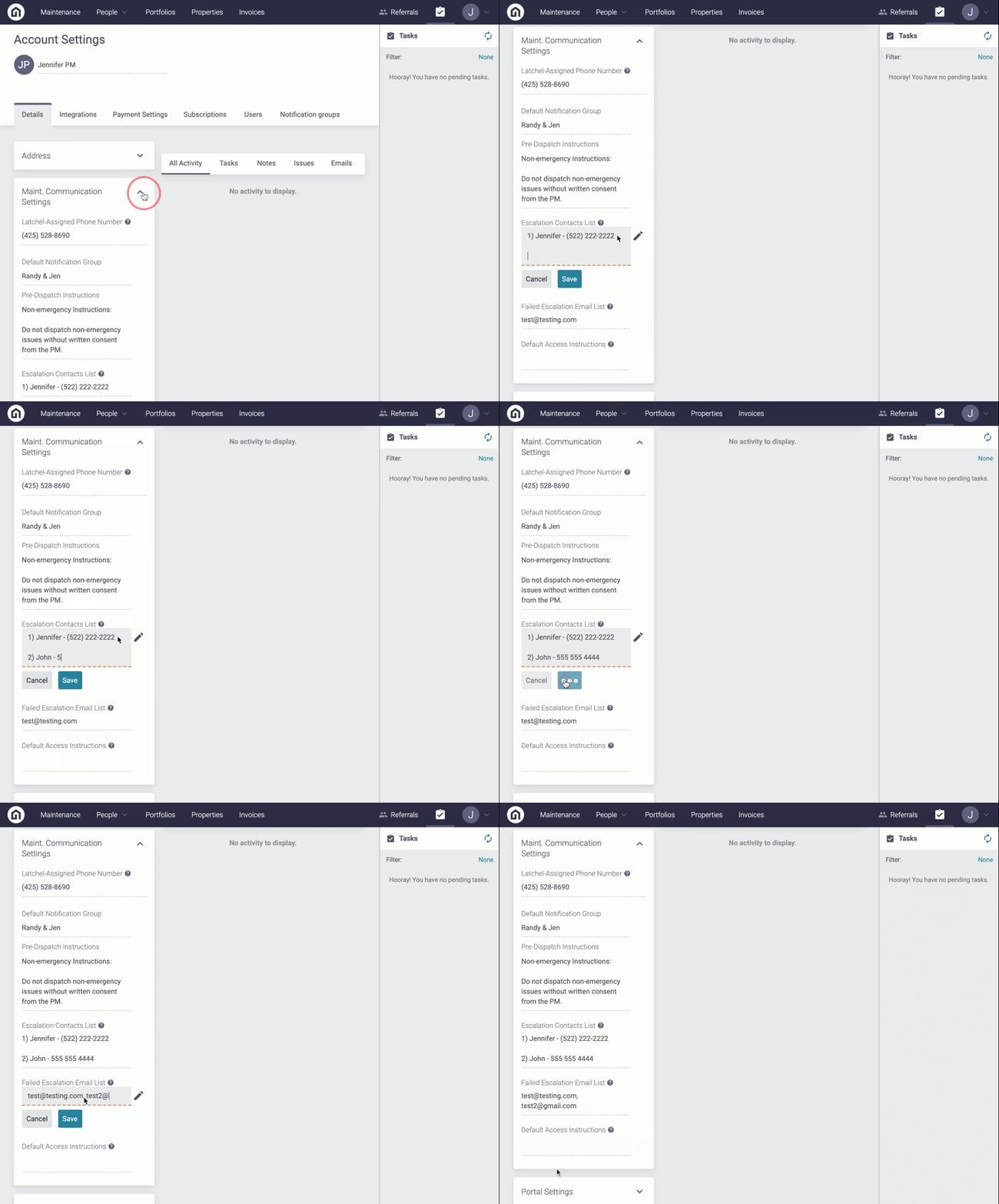
Step 3. Under the Details tab, scroll down to the Maint. Communication Settings section. From here, you can update or add your Escalation Contacts List that you want to be called in the event that an emergency request needs to be escalated. You can also add or update your

To list multiple email addresses, separate emails by a comma. (i.e. test@gmail.com, test2@gmail.com, test3@gmail.com)

How to Update Escalation Contacts at the Portfolio Level

Please note: The Escalation Contacts set at the Portfolio Level will automatically be applied to all properties within that portfolio. To learn more about configuration inheritance and how a single property can override Portfolio & Company level configurations, see https://latchel.ticksites.com/wp2/blog/configuration-inheritance-details-tab.

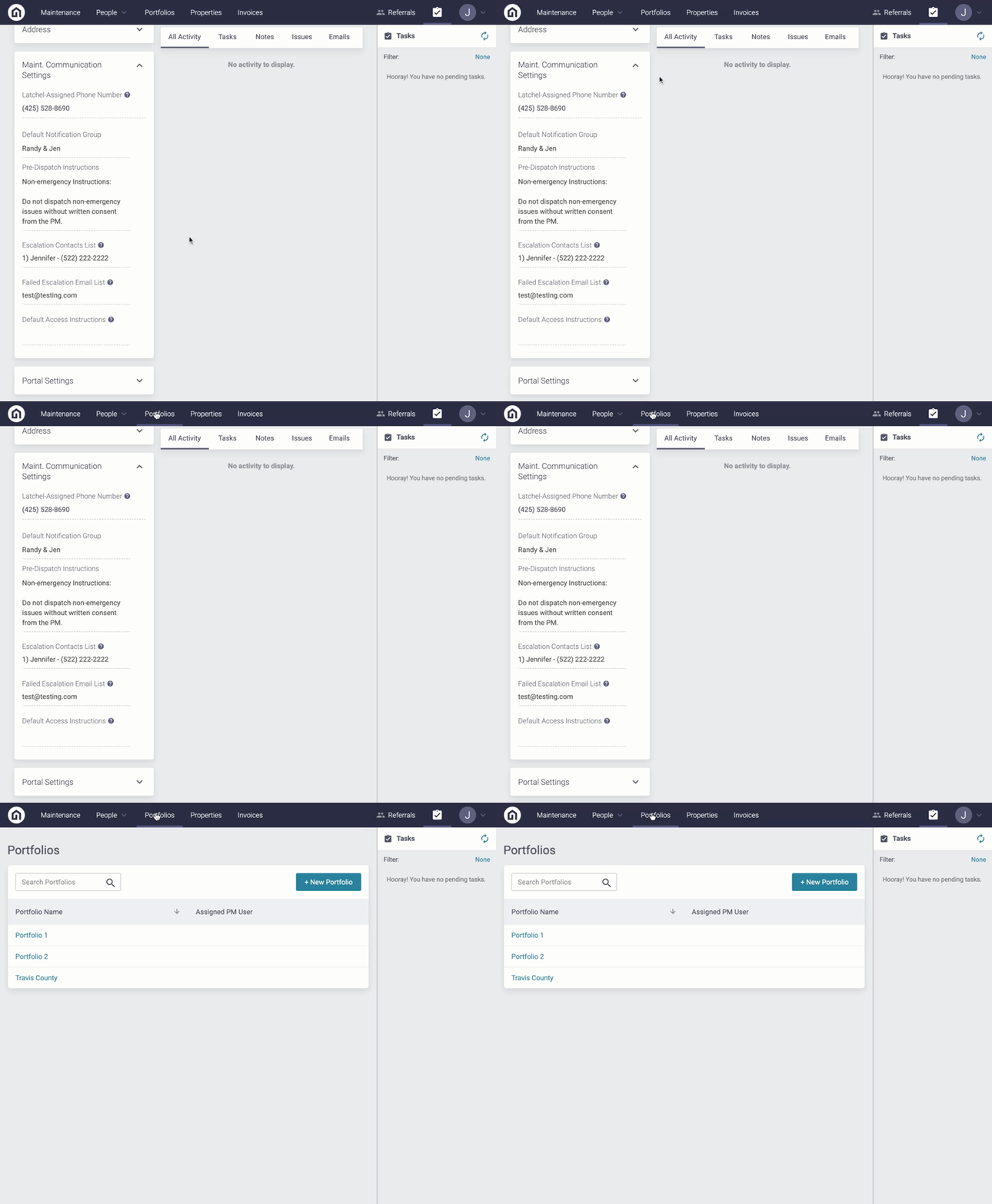
Step 1. Click the Portfolio tab at the top of your portal

Step 2. Next, click on the name of Portfolio

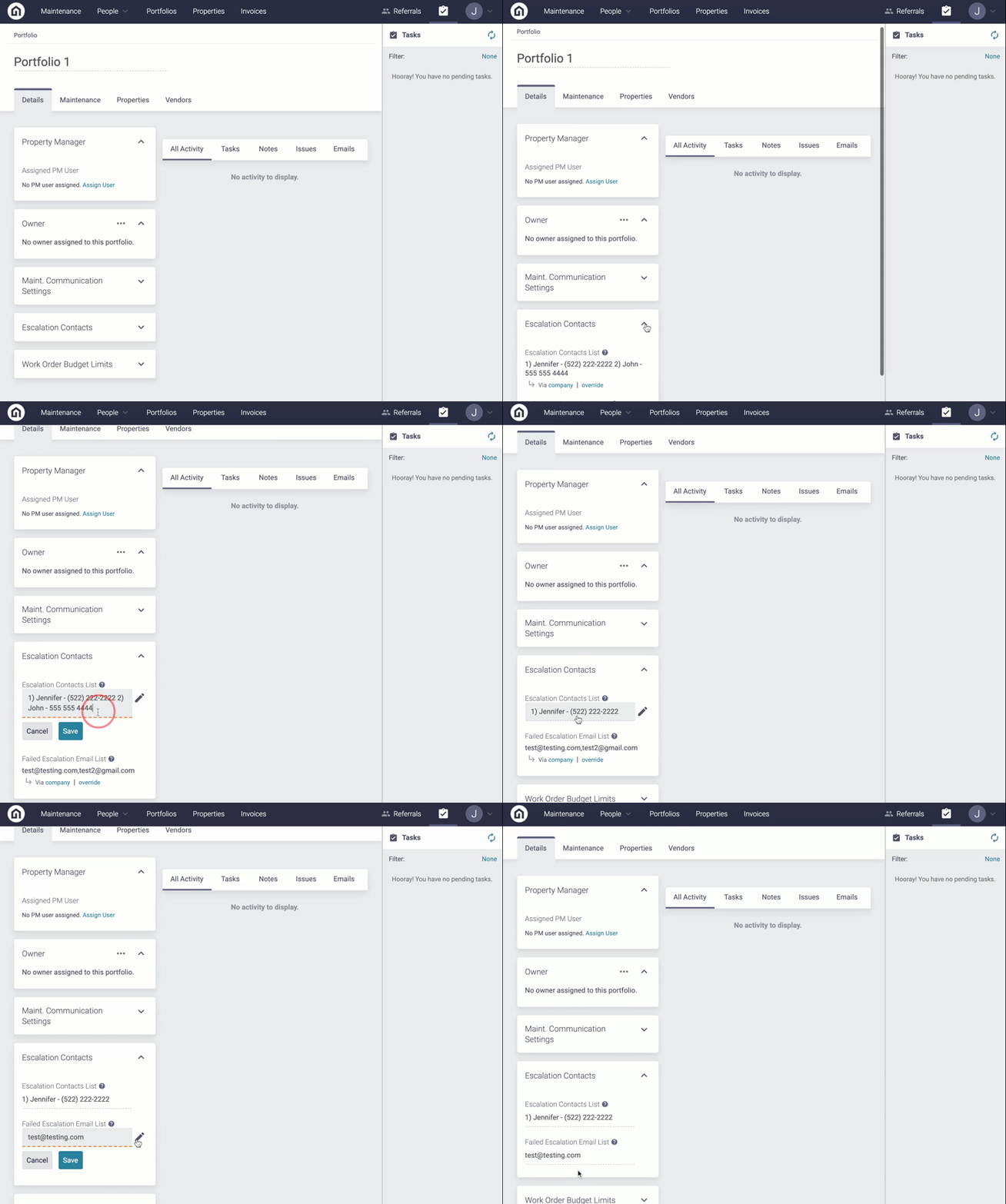
Step 3. On the Details page, scroll down to the Escalation Contacts section. From here, you will see the Company Level Escalation Contacts were automatically applied to the portfolio. To override the Company Level, click override and then update or add your Escalation Contacts. You can also add or update your

How to Update Escalation Contacts at the Property Level

Step 1. Click the Properties tab at the top of your portal

Step 2. Search for the property and click on the address

Step 3. On the Details page, scroll down to the Escalation Contacts section. From here, you will see the Portfolio Level Escalation Contacts were automatically applied to the property within the portfolio. To override the Portfolio Level, click override and then update or add your Escalation Contacts. You can also add or update your