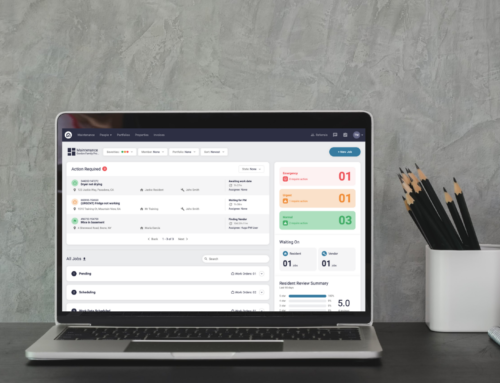
As a Property Manager, you can manage default access instructions. If you have lockbox codes or master key instructions for Service Providers, you should configure each property with default access instructions. These instructions will automatically appear on Work Orders sent to Service Providers.
This is especially useful when we get permission to enter from residents because it simplifies scheduling and does not require the resident to be on site for the Service Provider to perform work.
Content


How to Configure a Portfolio with Default Access Instructions
Step 1. Click the Portfolio tab at the top of your portal
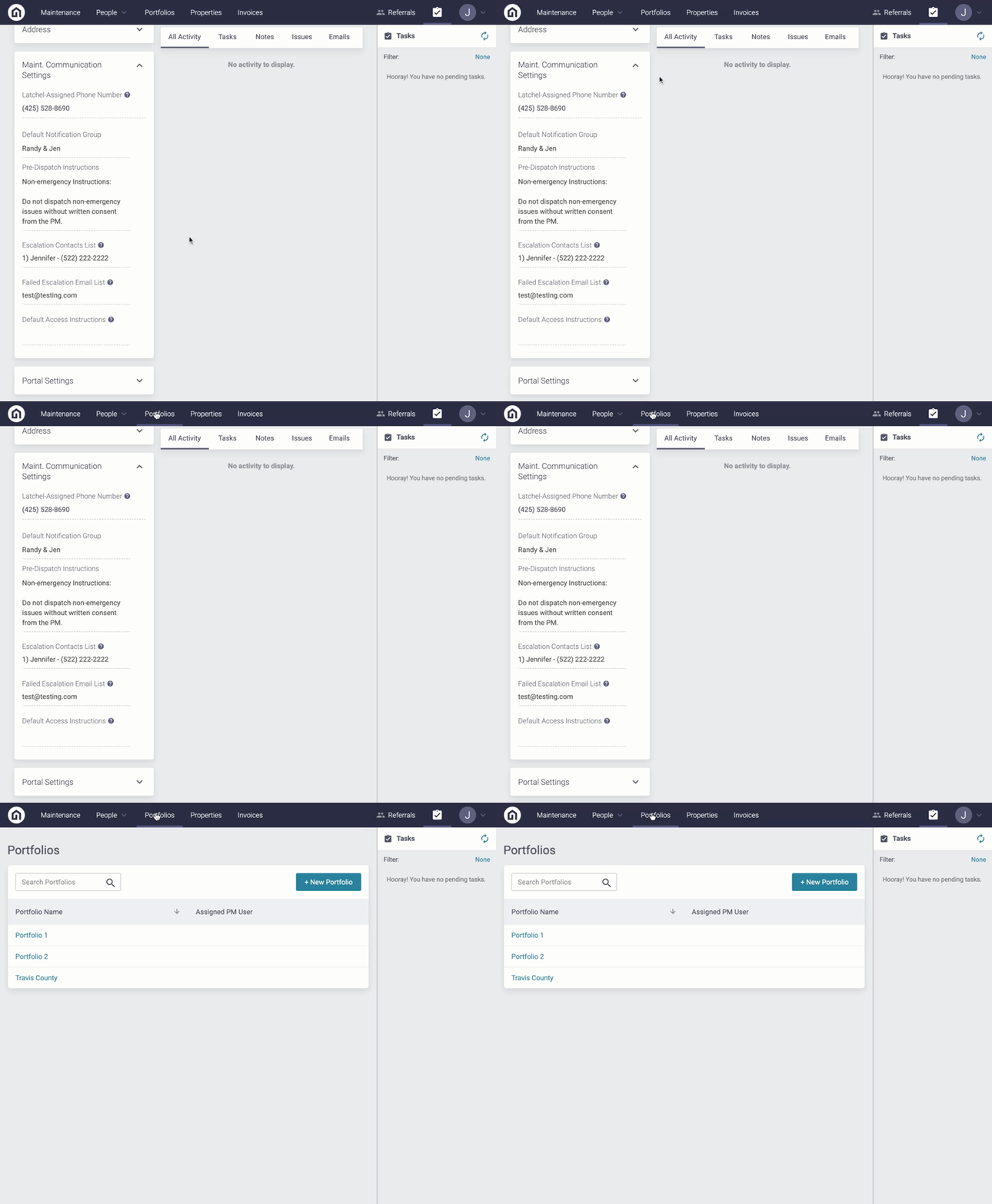
Step 2. Next, click on the name of Portfolio

Step 3. Under the Details tab, scroll down to the Maint. Communication Settings section. From here, you will see an editable field under Default Access Instructions. Type the instructions for the Service Provider and click Save
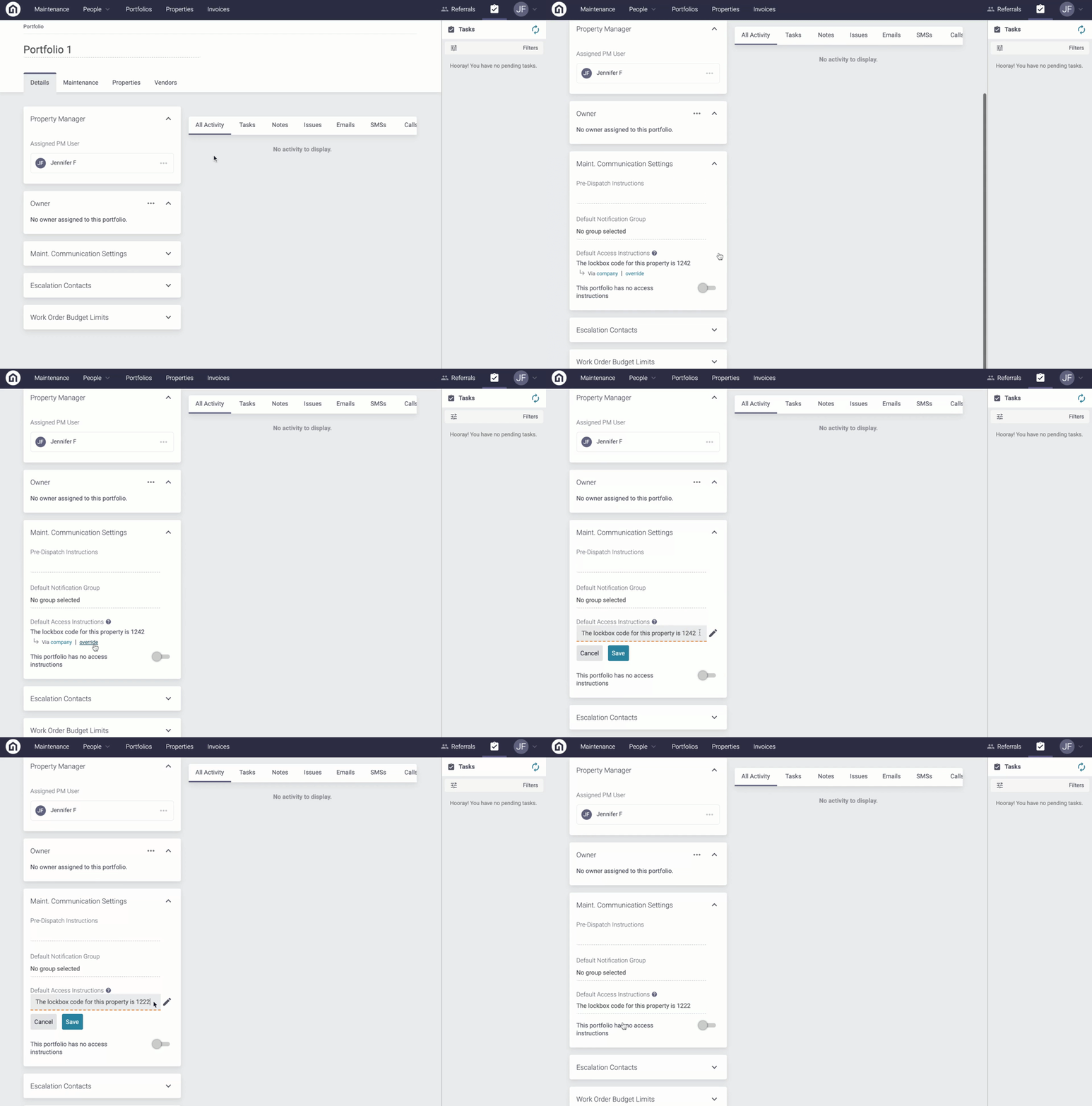
Step 4. Ensure the “This portfolio has no access instructions” toggle is OFF. If this toggle is OFF, it should appear grey and positioned to the left.

How to Configure Default Access Instructions at the Property Level
Step 1. Log into the Latchel Portal
Step 2. Click the Properties tab at the top of your portal

Step 3. Search for the property and click on the address

Step 4. Under the Details tab, scroll down to the Maint. Communication Settings section. From here, you will see the property inherited the Access Instructions from the Portfolio level. To override this, click override and then select then type the property’s Access Instructions and then click Save.

Step 6. Ensure the “This property has no access instructions” toggle is OFF. If this toggle is OFF, it should appear grey and positioned to the left.